If you spot a mistake in the details you gave Santa, open that child's order before saving a correction. Changing an answer can replace messages you have already approved.
Change the details
Follow these steps for the child whose answers need correcting:
- Open Your Orders, then your purchase. If it contains several products or children, choose the product and child you want.
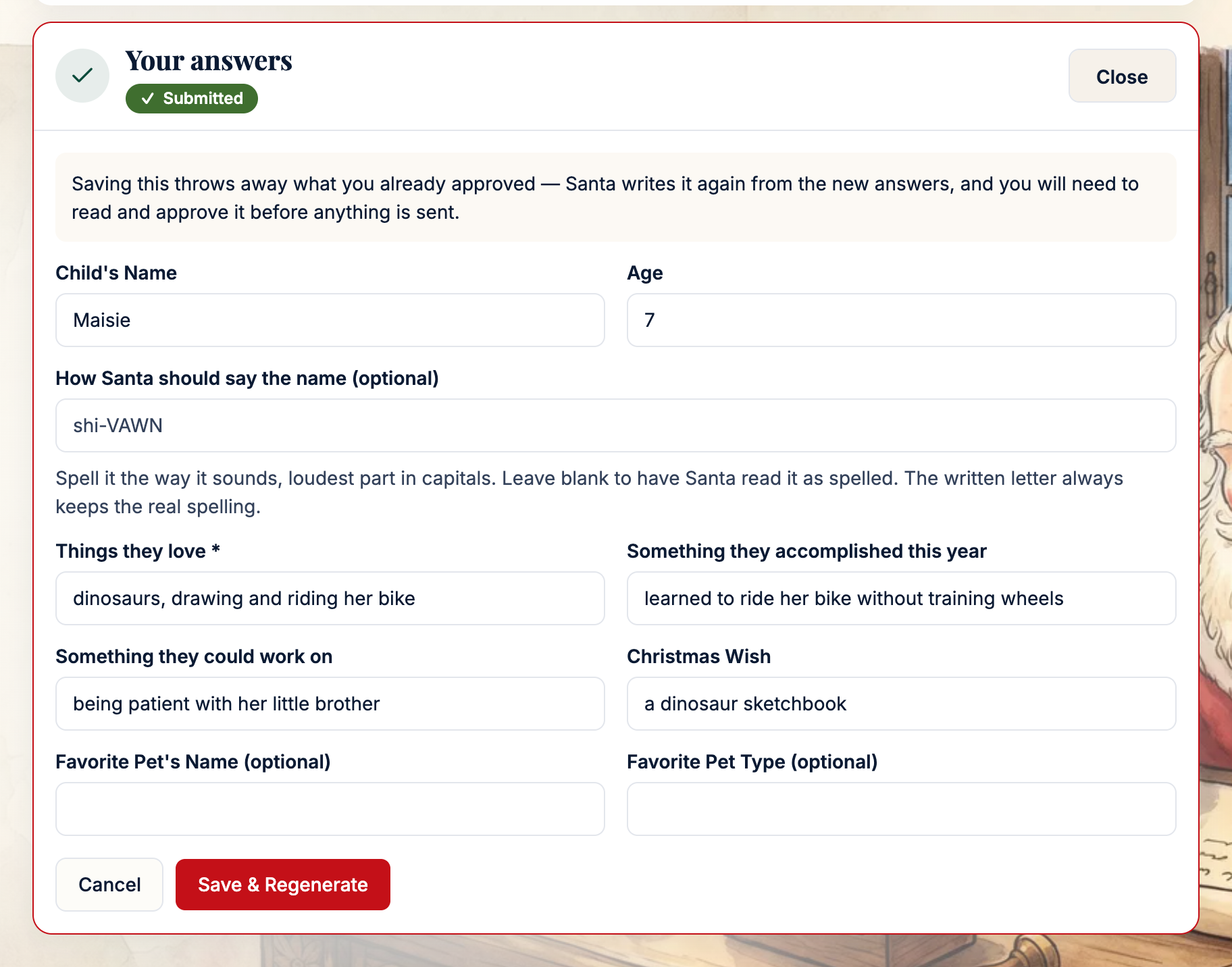
- Open Your answers below the message cards, then select Edit Answers.
- Correct the details. If only a pronunciation needs changing, use How Santa should say the name (optional) or the relevant pronunciation box.
- Read the notice above the form. If you have approved a message, it starts: “Saving this throws away what you already approved”. Select Save & Regenerate to save the new details, or Cancel to leave them unchanged.
If editing is unavailable
Once any delivery for this child's order has been sent, the answers cannot be edited. If a message is approved and about to be sent, move its send time later before editing.
Once filming has started, only pronunciation hints remain editable. Changing those hints does not change a video already filmed. Other answers stay locked unless a paid re-film unlocks them; a re-film is not available while filming is in progress or after the video has been sent.
What happens next
When you save a change to anything other than pronunciation hints, Santa writes the messages again from the new details. This replaces the existing drafts and their approvals. Read and approve the new versions on the message cards. A pronunciation-only change keeps the written messages and their approvals.
Related
Still stuck? Email support@mysantaletters.com.
Was this article helpful?
That’s Great!
Thank you for your feedback
Sorry! We couldn't be helpful
Thank you for your feedback
Feedback sent
We appreciate your effort and will try to fix the article