If your plans have changed, you can change the send time for a message that has not been sent. Each message has its own schedule, so changing the email does not move the text or video. A printed letter has no send time to change.
Change the schedule
Start with the message whose timing you want to change:
- Open Your Orders, then your purchase and the relevant child. Choose the product first if your purchase contains several.
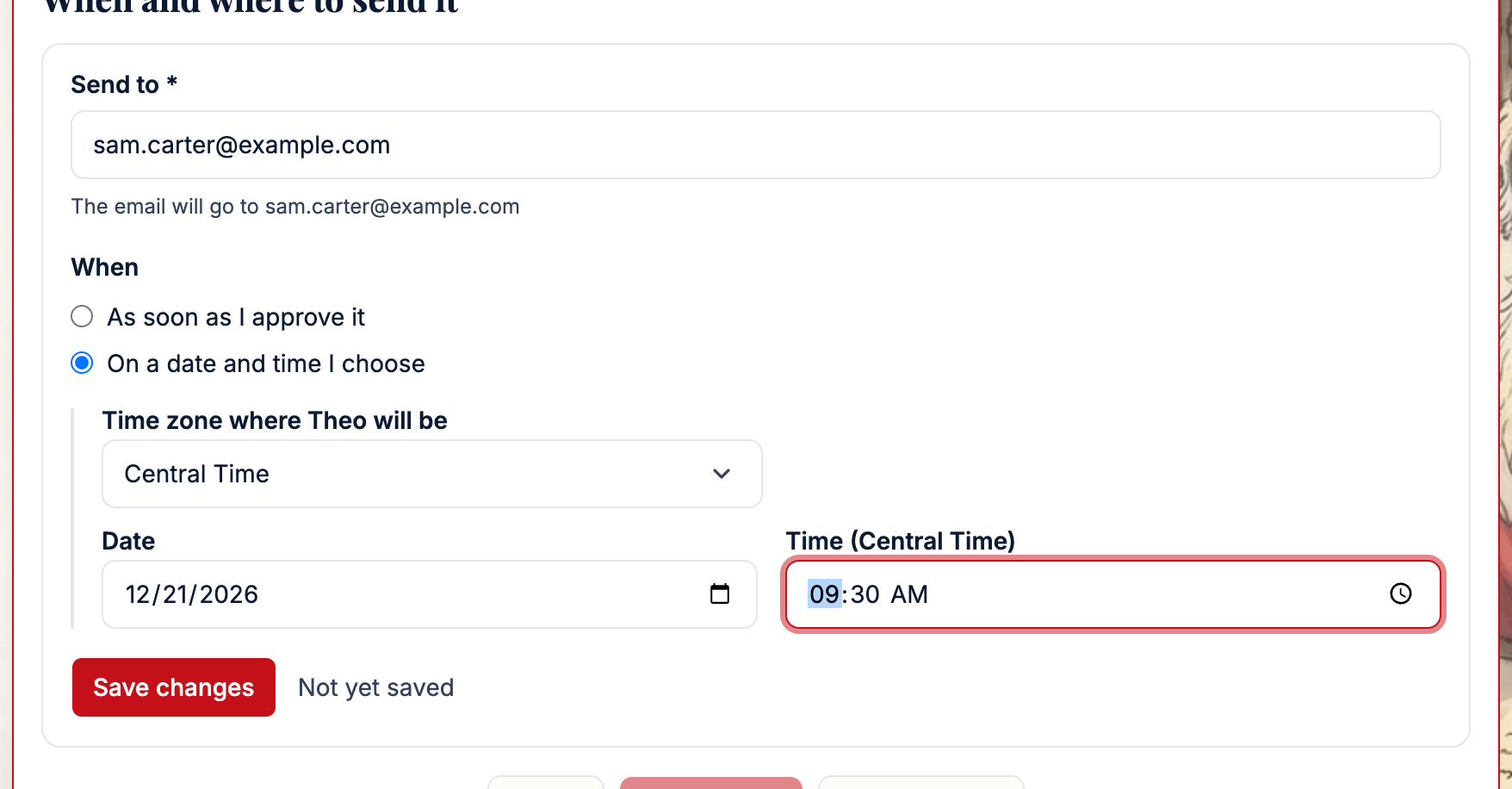
- Open Text Message, Email or Video. Complete any design choices first. Find When, under When and where to send it where that heading appears.
- Select On a date and time I choose. Check the time zone for the recipient, then set Date and the time in that zone. If the form refuses an early time, choose one after the earliest time it shows.
- If Save changes is shown, select it and check for ✓ Saved. For an unapproved text or email, review it first, then select Approve and schedule. For an unfilmed video, finish the script and scene steps before Save and start filming, then confirm Start filming.
For a printed letter
A printed letter has no date to choose. Instead of When, the Letter card shows these notes:
- All printed letters are sent to the printer on December 10th.
- Letters are mailed within 3 business days and will arrive at your home within 3–7 days after mailing.
- Letters not approved by December 10th are approved automatically so they make the print run.
- We are not responsible for delays with the postal service.
The date in the notes is the day the letter goes to the printer, not the day it arrives. You can still edit and approve the letter, and correct its mailing address, until then.
What happens next
The saved schedule applies to that message only. A sent message cannot be rescheduled.
Related
Still stuck? Email support@mysantaletters.com.
Was this article helpful?
That’s Great!
Thank you for your feedback
Sorry! We couldn't be helpful
Thank you for your feedback
Feedback sent
We appreciate your effort and will try to fix the article